Muminbox
A downloadable tool for Windows
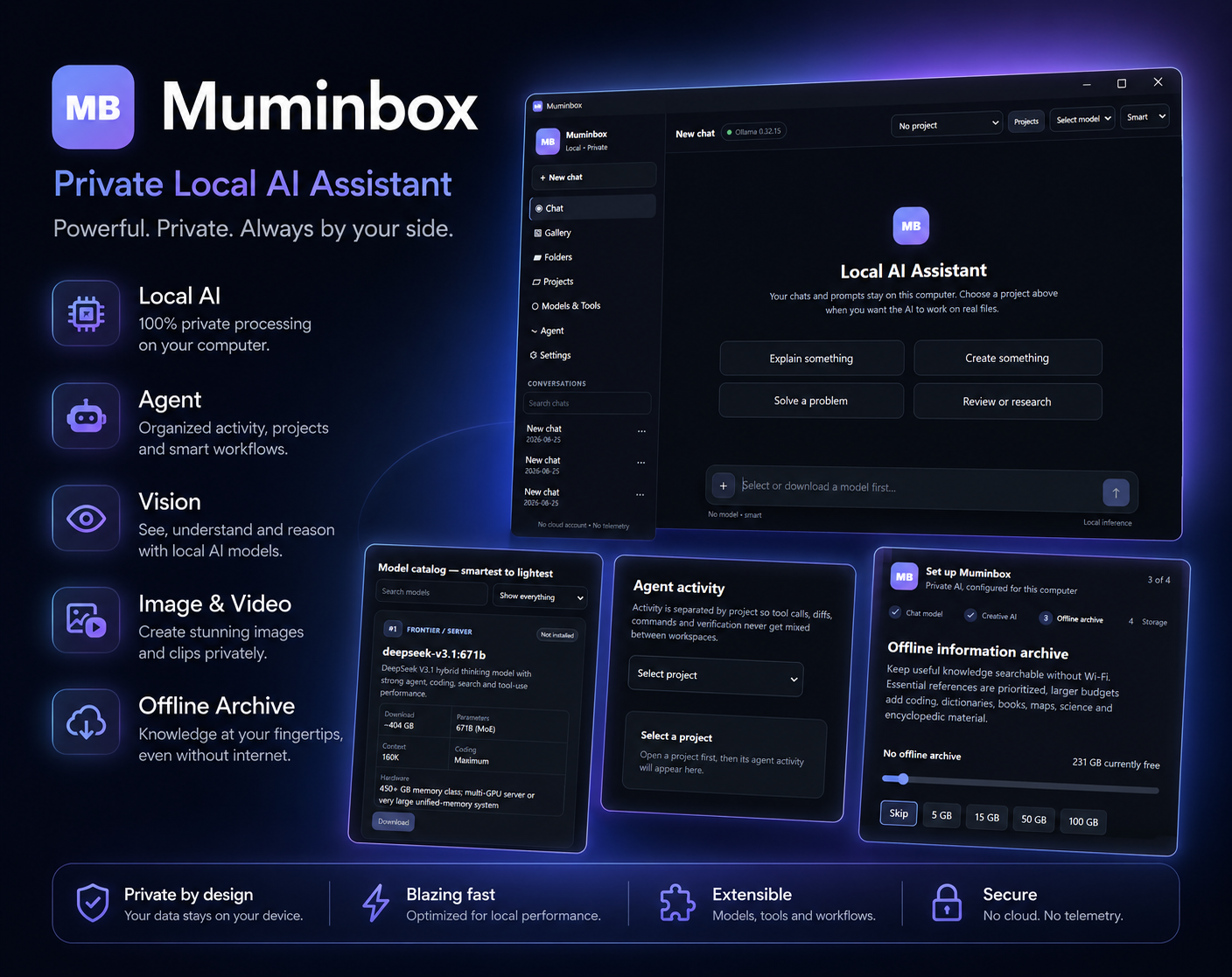
Muminbox is a private AI assistant that runs directly on your Windows PC.
You install and open Muminbox.exe, choose the AI models and features you want, and then use it like a normal AI chatbot.
Muminbox can chat, understand files and images, help with coding, work directly on authorized projects, generate images and videos, and run AI locally on your computer.
You do not need Docker, programming tools, or development software to use Muminbox.
Main Features
AI Chat
Chat with local AI models directly from Muminbox.
You can use it for:
- Questions and explanations
- Writing
- Coding
- Homework and studying
- Brainstorming
- Problem solving
- General everyday AI use
You can choose between different installed AI models depending on whether you want more speed or more intelligence.
Local AI
Muminbox can run AI models locally on your computer using Ollama.
This means many tasks can work without sending your conversations to an external AI service.
Models are downloaded separately, so you only install the ones you want.
Smart Model Selection
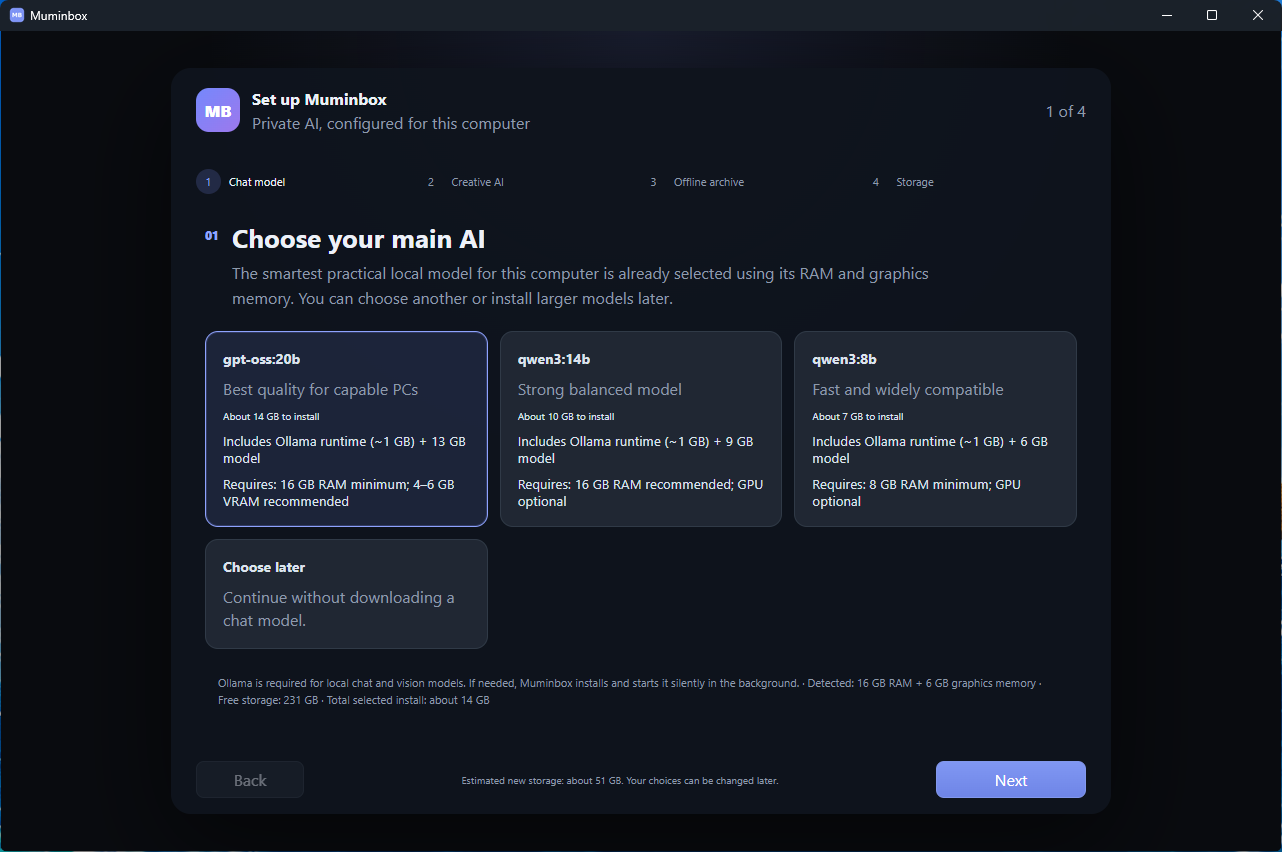
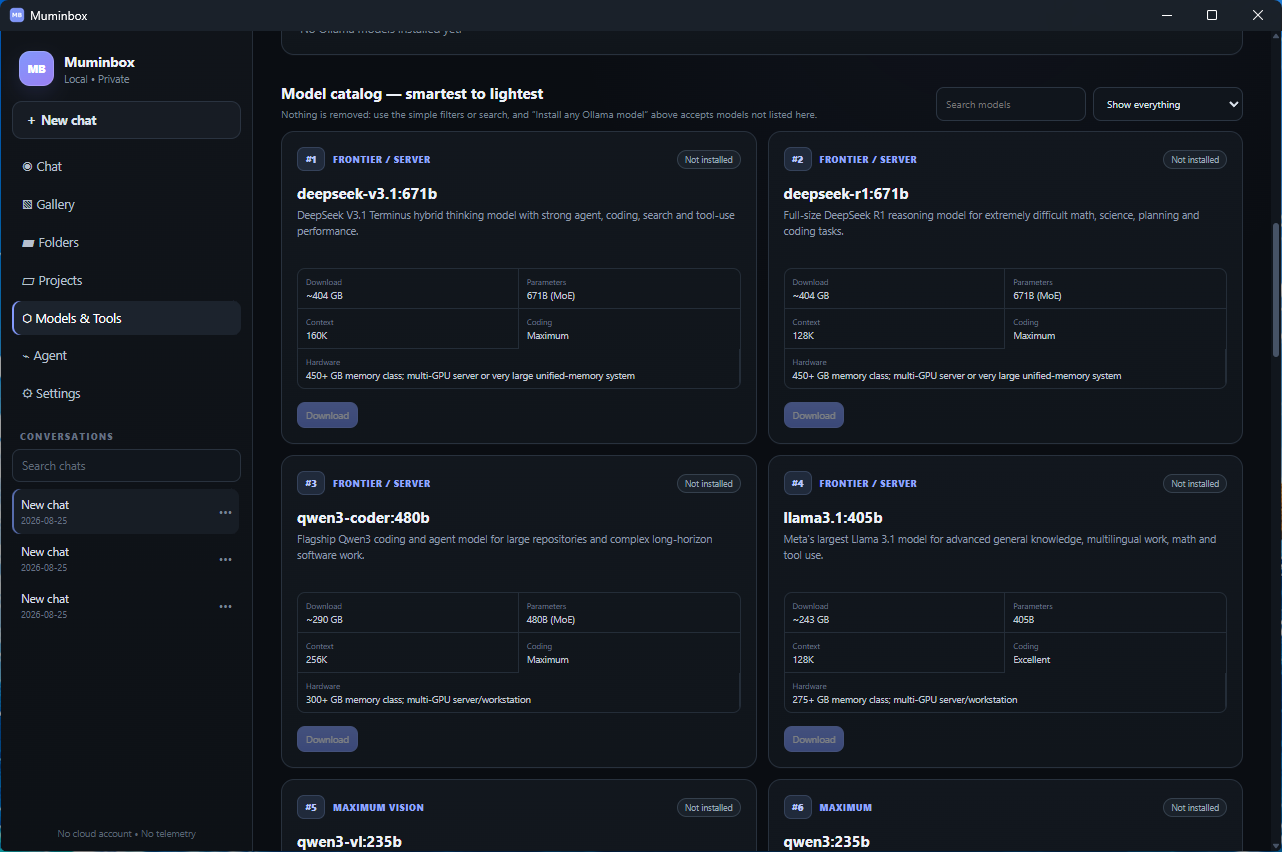
Muminbox shows available AI models and helps you choose models suitable for your computer.
Larger models are generally smarter but require more RAM, VRAM, storage, and processing power.
Smaller models are faster and work better on weaker computers.
Images and Vision
You can give Muminbox images and ask questions about them.
You can:
- Paste screenshots with Ctrl+V
- Drag images into chat
- Attach image files
- Ask the AI what is in an image
- Analyze diagrams
- Read screenshots
- Inspect errors
- Understand technical images
- Analyze circuits and other visual problems
If your selected model cannot understand images, Muminbox can use an installed vision-capable model instead.
PDFs and Files
You can attach files directly to a conversation.
Supported content includes things such as:
- PDFs
- Images
- Text files
- Code
- Documents
- Videos
You can then ask Muminbox questions about the attached content.
For example:
Summarize this PDF.
Find the bug in this code.
Explain this diagram.
Look through these files and tell me what they do.
AI Agent
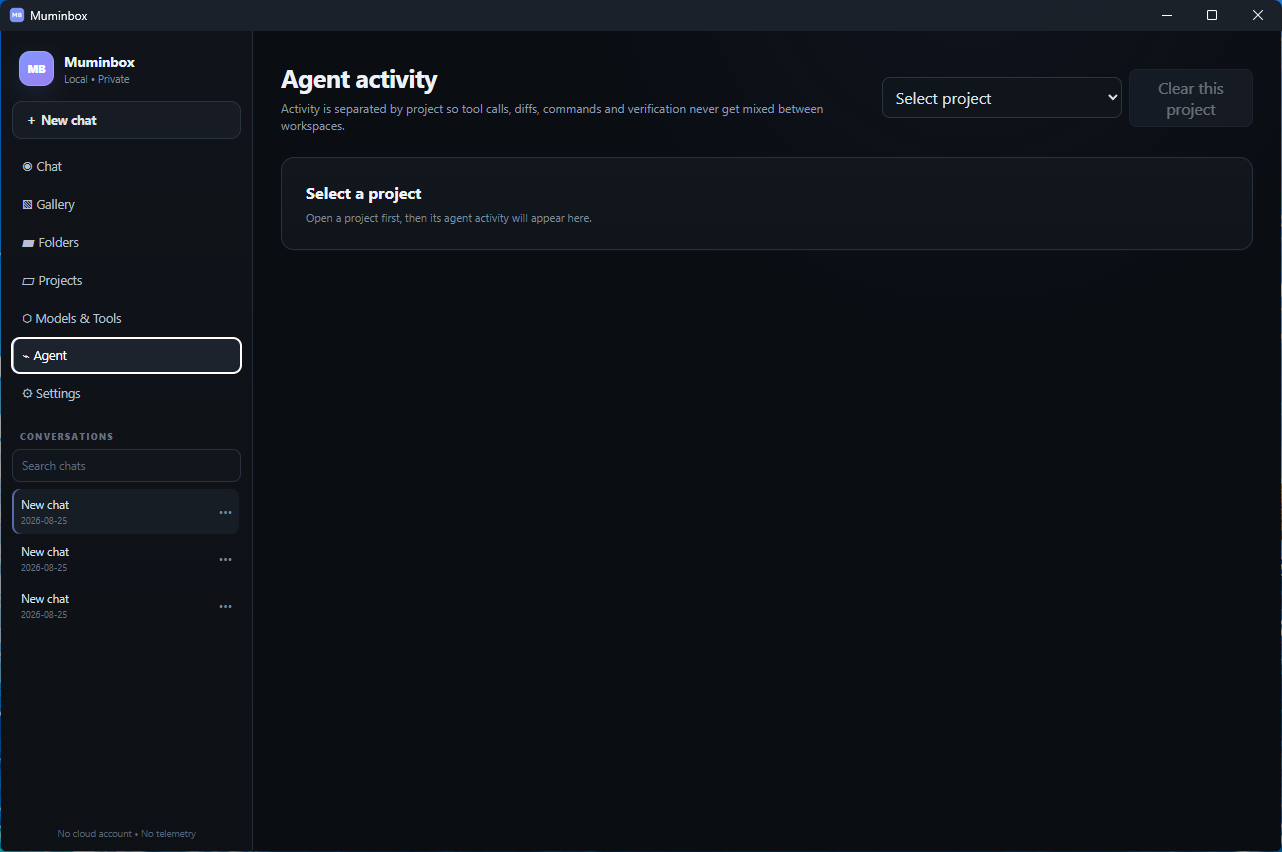
Agent mode allows Muminbox to do more than simply give instructions.
When you authorize a project folder, the Agent can work with the files inside it.
It can:
- Read project files
- Search through code
- Create files
- Edit files
- Move files
- Delete files
- Make changes across multiple files
- Inspect project structure
- Run approved development commands
- Check its changes
Muminbox only gives the Agent access to projects you explicitly authorize.
Coding and Unity
Muminbox is especially useful for programming and Unity development.
You can attach or authorize a project and ask things such as:
Fix this error.
Add a sprint system.
Create an inventory system.
Find which script controls the player.
Add this feature to my existing project.
Instead of only giving you sample code, Agent mode can inspect and edit the actual authorized project.
Project Safety
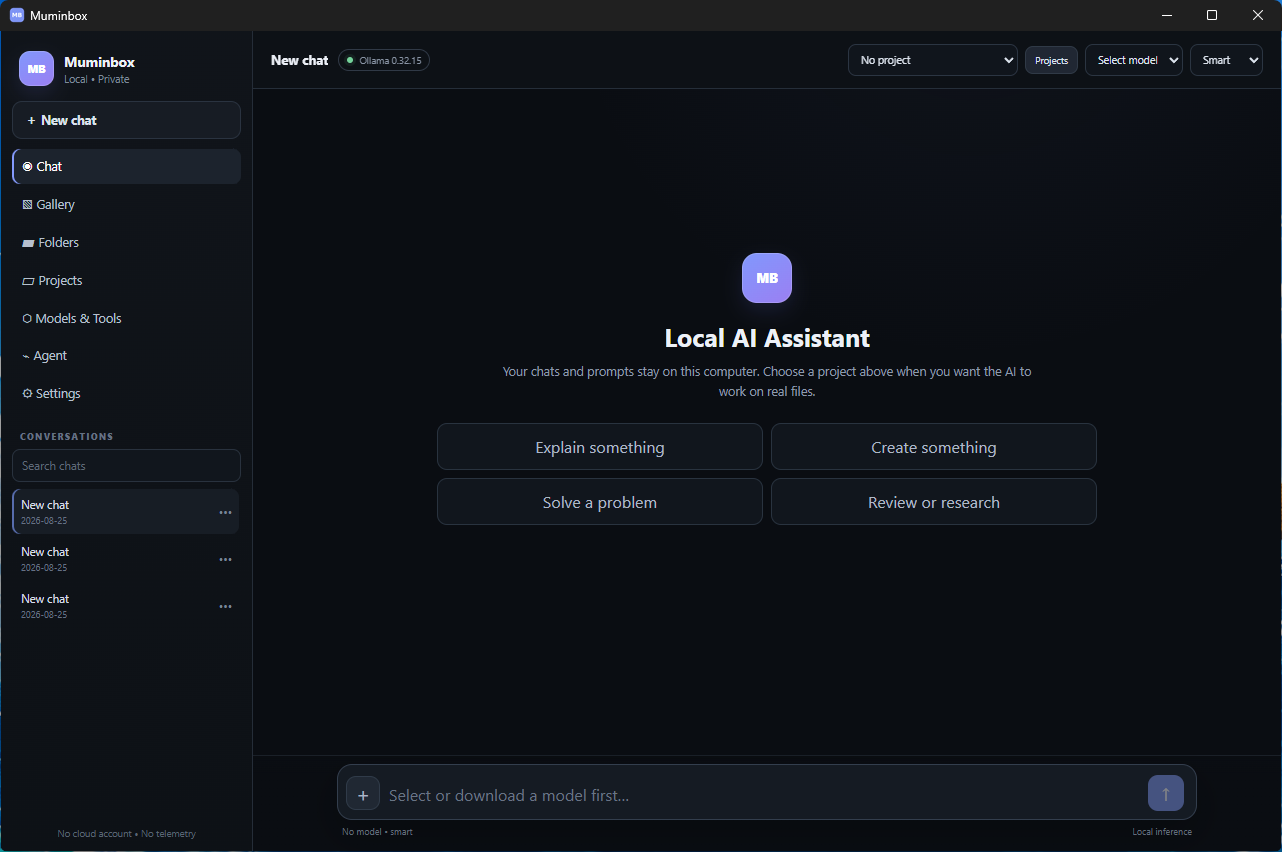
A new chat starts with No Project selected.
This helps prevent Muminbox from accidentally changing files from a project you were previously working on.
Before Agent mode can modify a project, you choose the project and give it permission.
Different permission levels let you control how much the Agent can do automatically.
Undo and Recovery
Agent changes are tracked so you can inspect what was modified.
Muminbox can keep recovery information for file edits, helping protect projects if something goes wrong or if you want to undo an AI-generated change.
Image Generation
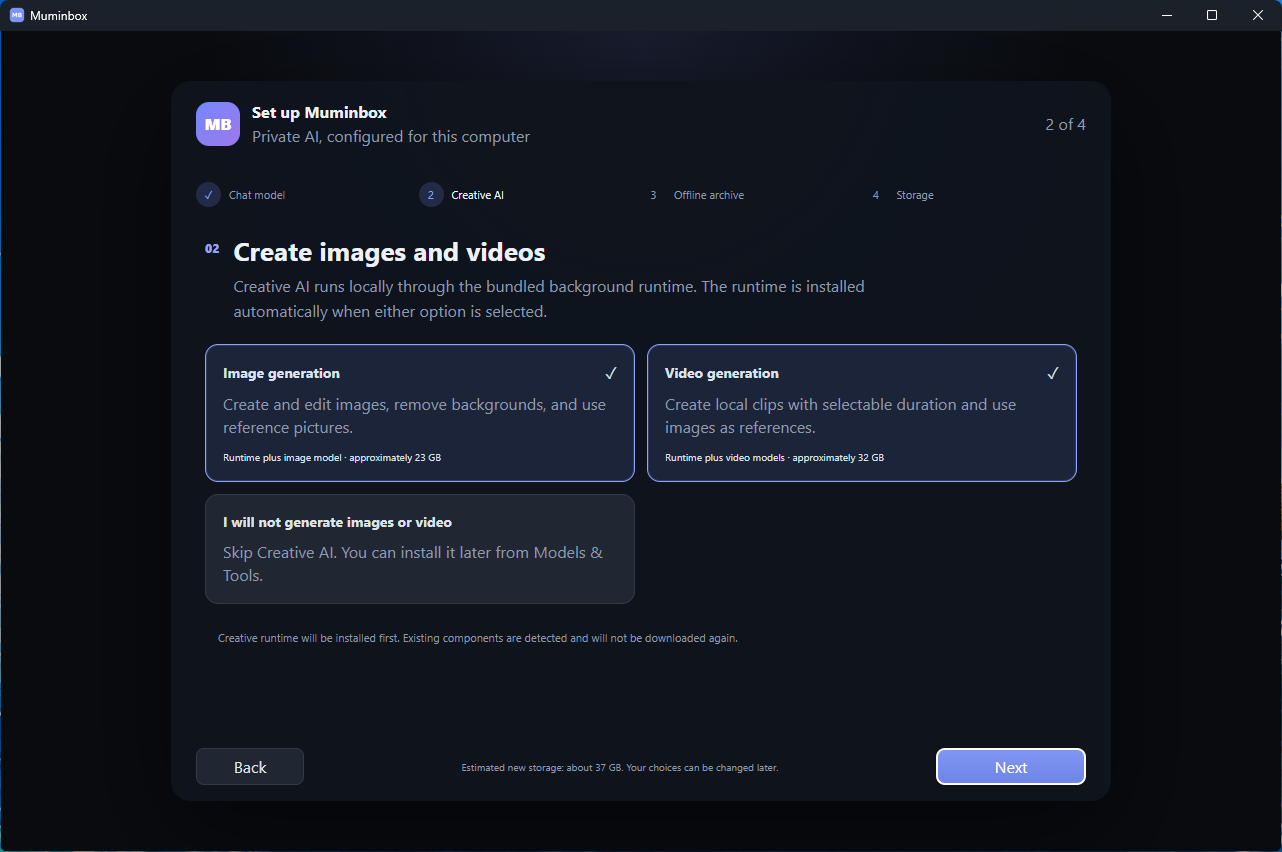
Muminbox can optionally install local image-generation AI.
Once installed, you can simply type something like:
Generate a realistic image of a futuristic city at night.
You can choose options such as:
- Aspect ratio
- Resolution
The generated image appears directly in the chat.
You can then:
- View it
- Copy it
- Download it
- Find it later in the Gallery
Video Generation
Muminbox can also install optional local AI video-generation components.
Once installed, you can request videos directly from chat.
Video generation requires significantly more storage and computer power than normal AI chat.
Gallery
The Gallery keeps your generated media together.
It contains generated:
- Images
- Videos
From the Gallery you can preview, download, or delete individual files.
Offline Use
After the required AI models have been downloaded, many Muminbox features can work without an internet connection.
Local chat, coding assistance, project work, and supported local AI generation do not require a cloud AI service.
Features that specifically need current internet information will still require a connection.
Optional Offline Knowledge
Muminbox can also store additional information locally for use when internet access is unavailable.
You can control how much storage you are willing to dedicate to offline information.
Muminbox shows your available disk space and prevents installations when there is not enough room.
Web Information
When internet access is available, supported Muminbox features can use current public information from the web when necessary.
This lets the AI combine current information with local files and project context.
Background Tasks
Muminbox keeps different tasks separate.
For example, you can:
- Download a model
- Generate an image
- Have another chat open
- Run an Agent task
without everything being treated as one single operation.
Stop and Cancel
Long-running tasks include controls to stop them.
You can cancel things such as:
- AI responses
- Model downloads
- Agent operations
- Image generation
- Video generation
- Component installations
Storage Management
AI models can take up a large amount of disk space.
Muminbox allows you to choose where large models and Creative AI files are stored.
It also shows storage information before large downloads and warns you if there is not enough available space.
How to Use Muminbox
1. Install Muminbox
Run the provided Muminbox.exe.
Follow the setup instructions and choose where you want Muminbox and its larger AI files to be stored.
You do not need to manually install Docker or development tools.
2. Open Muminbox
Launch Muminbox normally from Windows.
The application will check the AI components it needs and show you what is available.
3. Choose an AI Model
Open Models & Runtime.
Select or download an AI model.
Muminbox shows information about model capability and system requirements to help you choose one appropriate for your PC.
4. Start Chatting
Create a new chat and type your message.
For example:
Explain photosynthesis simply.
Help me write this paragraph.
Fix this Python error.
Explain how this circuit works.
5. Attach Something
Drag a file into the chat, use the attachment button, or paste an image.
Then ask Muminbox what you want it to do with the file.
6. Work on a Project
Open Projects and select the folder you want Muminbox to work with.
Authorize the folder and select it for your current chat.
Turn on Agent mode when you want the AI to make actual changes.
For example:
Look through this project and fix the inventory bug.
Muminbox can inspect the relevant files and make the changes inside the authorized project.
7. Generate Images or Videos
Open Models & Runtime and install the optional Creative AI components.
After they are installed, simply request an image or video from chat.
Your generated media will also appear in the Gallery.
8. Manage Storage
Use Settings or Models & Runtime to:
- View installed models
- Delete models you no longer need
- Change storage locations
- Check available storage
- Manage Creative AI components
- Manage offline information
In Simple Terms
Install Muminbox.exe, choose your AI models, and start using it.
Muminbox combines:
AI chat + local AI + image understanding + file support + coding + project editing + Unity assistance + AI Agent + image generation + video generation + offline capabilities + optional web information
into one Windows application.
Download
Click download now to get access to the following files:
Leave a comment
Log in with itch.io to leave a comment.